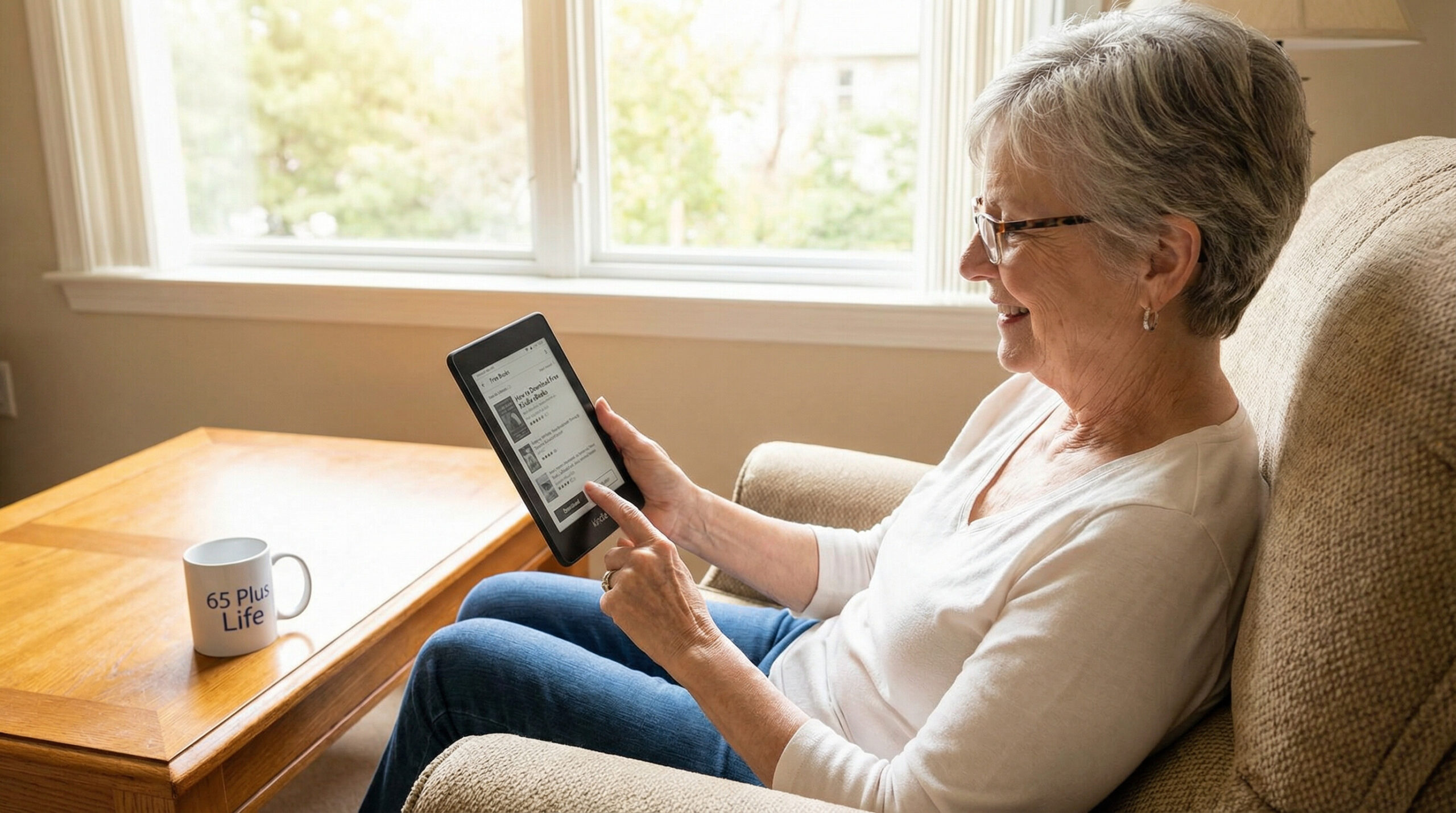
How to download free kindle ebooks for older adults is my article today. Not all seniors know how to do technical things online like downloading free kindle ebooks. 65 Plus Life is proud to be an educational resource for the boomer generation.
Affiliate Disclosure
Amazon + Wealthy Affiliate + Friends
Jeffs Promise To You
You will never find any affiliate links in any of my step-by-step guides on any of my websites, I feel that my guides are to educate you, not push products & services at you.
Affiliate Disclosure: Some of the links on this website may be affiliate links. This means that if you click a link and make a purchase, I may earn a small commission at no extra cost to you. These commissions help support 65 Plus Life, Boomer Biz HQ, and Dawg Solutions. so I can continue creating free resources for older adults.
Amazon Disclosure: As an Amazon Associate, I earn from qualifying purchases. Any Amazon links used throughout this website may earn a commission when you purchase through them.
Wealthy Affiliate Disclosure: I am also a proud affiliate of Wealthy Affiliate. If you choose to join their platform through my referral link, I may earn a commission. I only recommend Wealthy Affiliate because it has personally helped me build websites and create income online, and I believe it can help other older adults learn these skills too.
Thank you for supporting my work — it truly means a lot
Jeff
Why Kindle eBooks Are So Popular With Older Adults
Over the past several years, Kindle eBooks have become one of the most popular ways for adults over 65 to enjoy reading—and for good reason. They’re convenient, affordable, and easy on the eyes, making them a great option whether you’re an avid reader or just getting back into books.
Many older adults appreciate being able to carry an entire library without lifting heavy books or making trips to the bookstore or library. With just a few taps, a new book can be downloaded and ready to read in minutes.
Even better, thousands of Kindle eBooks are available for free, which makes reading more accessible than ever—especially for those on a fixed income.
Features That Make Kindle eBooks Ideal for Seniors
Kindle eBooks offer several built-in features designed to improve comfort, readability, and overall enjoyment—especially for aging eyes and hands.
Adjustable Font Size
You can increase or decrease the text size instantly. No more squinting or hunting for large-print editions.
Adjustable Brightness & Background
Change screen brightness or switch to dark mode for more comfortable reading, day or night.
Easy-to-Read Fonts
Kindle offers multiple font styles, including ones specifically designed to be easier on the eyes.
Lightweight & Portable
A tablet or e-reader weighs far less than most hardcover books and can store thousands of titles at once.
Easy Page Turning
Turn pages with a tap or swipe—no stiff bindings or struggling to hold pages open.
Optional Audiobook Support
Some Kindle books pair with audiobooks, allowing you to listen instead of read when your eyes need a break.
Access to Free Books
Many classic novels, popular titles, and helpful nonfiction books are available at no cost, especially for Kindle users.
A Comfortable, Affordable Way to Enjoy Reading Again
Kindle eBooks for seniors remove common barriers to reading—small print, heavy books, cost, and limited access. Whether you enjoy novels, devotionals, how-to guides, or health and wellness topics, Kindle makes it easy to read on your terms.
Best Affordable Devices for Kindle eBooks (Budget-First)
Dedicated e-Readers — Best for Comfort & Reading
- Amazon Kindle 16GB – Great middle-ground choice for most readers: glare-free screen, adjustable light, holds thousands of books, weeks of battery life.
- Kindle Basic 11th Gen – Super inexpensive way to get into Kindle reading; simple and easy for beginners.
- Amazon Kindle Paperwhite – A step up with a bigger screen and longer battery life — still very affordable and easy on the eyes.
- Amazon Kindle Colorsoft – For readers who enjoy book covers, cookbooks and magazines in subtle color (still easy on the eyes, but a bit pricier).
- XIAOQIAODZ E‑Reader – Ultra-budget E-Ink reader option — very basic functionality but gets the job done for reading text.
Tablet Options — Good If You Want More Than E-Books
- Kindle Fire 7 Tablet – Very low-cost tablet that lets you read Kindle books and do other things like browse the web or use apps. Just keep in mind it’s backlit rather than E-Ink, so it’s more like reading from a phone or laptop screen.
Other E-Reader Brands (Works With Kindle Books via Apps)
- Kobo Clara Colour eReader – Highly rated E-Ink reader with color; reads many formats and with apps can access Kindle content too.
- NOOK Glowlight 4 eReader – A solid alternative with its own reading ecosystem and easy-on-the-eyes lighting.
Quick Tips to Choose
If reading comfort is your priority:
Pick an e-ink reader like a Kindle. These screens are designed to mimic real paper and reduce eyestrain — especially better than tablets for long sessions.
If price matters most:
Start with Kindle Basic or even one of the very inexpensive E-Ink readers. They’re affordable and perfect for straight reading. The Paperwhite is worth it if you want extra comfort and durability.
If you want extras (games, apps, larger screen):
A tablet like the Kindle Fire is a good pick — but the screen isn’t as gentle on the eyes for long reads.
Quick Recommendations for 65 Plus Life Readers
Best Choice for Most Seniors
Kindle Paperwhite
✔ Larger screen
✔ Adjustable warm light (easier on aging eyes)
✔ Excellent battery life
✔ Still affordable
Best Budget Option
Kindle Basic
✔ Lowest price
✔ Simple to use
✔ Perfect for free Kindle eBooks
✔ Lightweight and portable
Best If You Want More Than Reading
Fire 7 Tablet
✔ Very affordable
✔ Can browse the web, watch videos, use apps
❌ Not as comfortable for long reading sessions
Jeffs Tip for New Kindle Users
If your main goal is comfortable reading, especially for long periods, an e-ink Kindle (Basic or Paperwhite) is much easier on the eyes than a tablet. Tablets are fine for short reading sessions but can cause more eye strain over time.
How Kindle E-Readers Helped Me Enjoy Reading Again
Even With Low Vision
I want to share something personal with you.
As my vision changed over the years, reading traditional books became harder and harder. The print felt too small, even with reading glasses. Bright lighting caused glare, and large-print books were often bulky, limited in selection, or expensive.
Slowly, something I loved—learning through reading—started slipping away.
That changed when I discovered Kindle eReaders and eBooks.
What Made the Difference for Me
With a Kindle, I wasn’t forced to “make do” anymore. I could finally adjust the reading experience to my eyes, instead of struggling to adjust my eyes to the book.
Here’s what helped the most:
- I can enlarge the text instantly until it’s truly comfortable
- I can change the font style to one that’s easier for my eyes to track
- I can adjust brightness and background color to reduce glare
- I can read without eye strain, even for longer periods
- I don’t need perfect lighting to enjoy a book
Instead of giving up on reading, I found myself learning again—at my own pace, in my own comfort, without frustration.
Why This Matters
If you’ve ever thought:
- “My eyes just aren’t what they used to be”
- “Reading tires me out now”
- “I miss learning from books”
Please know this — you’re not alone, and you don’t have to give up reading.
Kindle eBooks for seniors don’t just make reading easier. For many of us, they make reading possible again.
And the best part? You don’t need to spend a lot of money. Many Kindle books are free, and the devices themselves are affordable, lightweight, and simple to use — even if you’re not “tech-savvy.”
Jeffs Encouragement

If you’re hesitant or unsure, I understand. I was too. But discovering Kindle eBooks gave me back something I thought I’d lost — the joy of learning through reading.
In the next section, I’ll show you exactly how to download free Kindle eBooks, step by step, with no guesswork and no stress.
How to Download Free Kindle eBooks
Step-by-Step for Beginners
This guide is written for anyone who’s brand new to Kindle. Go slowly—there’s no rush.
Before You Start (Quick Checklist)
You’ll need:
- An Amazon account (the same one used for shopping on Amazon)
- A device to read on: Kindle eReader, tablet, or smartphone
- Wi-Fi or internet (just for the download)
Option 1: Download Free Kindle Books on a Kindle eReader (Kindle / Paperwhite)
Step 1: Connect your Kindle to Wi-Fi
- Turn on your Kindle.
- Tap the top of the screen to open the menu.
- Tap Settings (gear icon).
- Tap Wi-Fi and choose your home network.
- Enter your Wi-Fi password (if asked).
Step 2: Open the Kindle Store
- From the Home screen, tap Store (or Kindle Store).
Step 3: Search for a free book
- Tap the Search bar at the top.
- Type a book title, author, or “free kindle books.”
- Tap Search.
Step 4: Make sure it’s actually free
- Tap the book you want.
- Look for the price. It should say $0.00 or Free.
Step 5: Download it
- Tap Buy Now (don’t worry—if it says $0.00, you won’t be charged).
- The book will download automatically.
Step 6: Start reading
- Go back to your Library (Home screen).
- Tap the book cover to open it.
That’s it—you now own the book in your Kindle library.
Option 2: Download Free Kindle eBooks on a Phone or Tablet (Using the Kindle App)
Step 1: Install the Kindle app
- On iPhone/iPad: open the App Store and search Kindle
- On Android: open Google Play Store and search Kindle
- Install the app called Amazon Kindle
Step 2: Sign in
- Open the Kindle app.
- Sign in with your Amazon account.
Step 3: Find a free Kindle eBook
This is the simplest way:
- Open your web browser (Safari/Chrome).
- Go to Amazon and search: Free Kindle eBooks
- Tap a book and confirm the price is $0.00.
Step 4: “Buy” the free book
- Tap Buy now (again—$0.00 means free).
- Choose Deliver to: select Kindle app (or your device name).
Step 5: Download it inside the Kindle app
- Open the Kindle app
- Tap Library
- Tap the book cover to download it (if needed)
- Tap again to start reading
The 3 Best Places to Find Free Kindle eBooks
1) Amazon “Top 100 Free Kindle Books”
Amazon has a list of books that are currently free.
Tip: Prices can change, so always check that it says $0.00 before clicking.
2) Kindle Unlimited (Free Trial)
If Amazon offers you a free trial, you can borrow many books during the trial period.
Important: Set a reminder to cancel before the trial ends if you don’t want to pay.
3) Prime Reading (If You Have Amazon Prime)
Some Prime memberships include a rotating selection of free books you can borrow.
A Few “Senior-Safe” Tips (Avoid Mistakes)
Tip 1: Always double-check the price
Before clicking Buy now, confirm it says $0.00.
Tip 2: Use “1-Click” carefully
Amazon makes buying very easy. That’s helpful—but it also means it’s important to confirm the price first.
Tip 3: You can read without internet later
Once a book is downloaded, you can read it anytime, even without Wi-Fi.
Tip 4: If a book disappears, don’t panic
You may have switched views. Tap Library and look under All (not just Downloaded).
Quick Troubleshooting (Common Problems)
“I can’t find my book.”
- Make sure you’re signed into the same Amazon account on your Kindle/app
- Check Library → All
- Turn Wi-Fi on and wait 1–2 minutes
“It’s asking me to pay.”
- That book isn’t free right now
- Go back and choose one that says $0.00
“My screen is too small / text is tiny.”
- On Kindle: tap the top of the page → Aa → increase font size
- On app: tap middle of the page → Aa → increase font size
You now know how to download free kindle ebooks with this easy to read simple guide.
Should You Consider Kindle Unlimited on a Fixed Income?
You may have seen something called Kindle Unlimited while browsing Amazon. It’s often promoted with a free trial, which can sound tempting — but is it really worth it if you’re watching your budget?
Let’s break it down in plain English.
What Is Kindle Unlimited?
Kindle Unlimited is a monthly subscription service from Amazon.
Instead of buying individual books, you can:
- Borrow up to 20 books at a time
- Read as many as you like from the Kindle Unlimited library
- Return books anytime and borrow new ones
Think of it like a digital lending library, but with a monthly fee.
What It Costs (Important for Fixed Incomes)
- After any free trial, Kindle Unlimited typically costs about the price of a couple of paperback books per month
- It automatically renews unless you cancel
Important: This is not a one-time purchase — it’s an ongoing monthly expense.
The Good News: When Kindle Unlimited Can Make Sense
Kindle Unlimited may be a good value if all of these apply to you:
You read many books every month
You enjoy fiction, romance, mysteries, or popular genres
You’re comfortable canceling subscriptions when needed
You like browsing and trying new authors
You prefer borrowing over owning books
For heavy readers, it can save money compared to buying books one by one.
Why Many Fixed-Income Readers Choose to Skip It
For many older adults, Kindle Unlimited is not necessary — and sometimes not ideal.
Here’s why:
❌ The books you really want may not be included
❌ Many classics and popular titles are already free without a subscription
❌ Monthly fees add up over time
❌ It’s easy to forget about subscriptions
❌ You don’t actually own the books — you’re borrowing them
For readers on a fixed income, free Kindle eBooks often provide more than enough reading material without any monthly cost.
A Smart, Low-Risk Way to Handle Kindle Unlimited
The Best Approach for Budget-Conscious Seniors
- Use the free trial only
- Read as many books as you like during the trial
- Cancel before the trial ends
- Decide later if it’s truly worth the monthly cost
Jeffs Tip
If you try it, write the cancellation date on your calendar or set a reminder.
Our Honest Recommendation for 65 Plus Life Readers

For most readers on a fixed income:
Start with free Kindle eBooks first
Explore classics, public-domain books, and free promotions
Only consider Kindle Unlimited after you know how much you actually read
You may discover you don’t need a paid subscription at all to enjoy reading again.
Jeffs Thoughts on Kindle Unlimited
Kindle Unlimited is optional, not required.
You can enjoy Kindle eBooks fully — and affordably — without spending a monthly dime.
For me, I have experienced finding enough Free Kindle eBooks not to need to subscribe to Kindle Unlimited, if you find you are not finding enough ebooks for free, you can also subscribe later on.
Jeff Shares
If you’re on a fixed income, free Kindle eBooks can be a fantastic way to read more without spending more. And if Amazon offers you a Kindle Unlimited free trial, it can be worth trying—as long as you cancel on time so you don’t get charged.
A smart approach many readers use is:
- Start the free trial
- Read as much as you want during the trial
- Cancel before the trial ends
- Keep enjoying the many free Kindle books that don’t require a subscription
Jeff Shares
Kindle Unlimited books are “borrowed,” not owned. If you cancel, you keep access until your billing date ends, and then KU-borrowed books stop working.
How to Cancel Kindle Unlimited
Before you start
You’ll cancel using a web browser (on a computer, iPad, or phone).
Most people can’t cancel directly from a Kindle eReader itself.
Method 1: Cancel on a Computer (Easiest)
Step 1: Open your web browser (Chrome, Edge, Safari)
Step 2: Go to Amazon and sign in to your account
Step 3: Open Manage Your Kindle Unlimited Membership
Step 4: Look for Your Membership (or a similar section)
Step 5: Click Cancel membership
Step 6: Amazon may show a few “Are you sure?” pages
- Keep choosing Continue to Cancel / Cancel membership until it confirms cancellation
After you cancel, your membership usually stays active until the end of your current period/trial.
Method 2: Cancel on a Phone or iPad (Also Works)
Step 1: Open your browser app (Safari/Chrome)
Step 2: Go to Amazon and sign in
Step 3: Open Manage Your Kindle Unlimited Membership
Step 4: Tap Cancel membership
Step 5: Confirm cancellation on any follow-up screens
Jeffs Tip for phones
If the page looks “crowded,” scroll slowly—Amazon often places the cancel option lower on the screen.
Alternate Route (If You Can’t Find Kindle Unlimited)
If you’re not seeing the Kindle Unlimited page, try this path:
Step 1: Go to Your Memberships & Subscriptions
Step 2: Find Kindle Unlimited
Step 3: Select Manage Subscription
Step 4: Select Cancel subscription
As you might be thinking, Amazon seems to make canceling not as easy as subscribing.
“I Cancelled—Now What?” (What to Expect)
- You can usually keep borrowing/reading KU titles until the end date shown on your account.
- After that date, KU-borrowed books may disappear or show as unavailable (books you purchased are still yours).
One Last Safety Tip (For Fixed-Income Readers)
Tip From Jeff
Write down the trial end date on paper or set a reminder on your phone calendar for 2 days before it ends.
That way, you can enjoy the trial—and still stay in control of your budget.
Thank you for taking the time to read ” How to Download Free Kindle ebooks” from 65 Plus Life.
Jeff/ 65 Plus Life
Affiliate Disclosure
Amazon + Wealthy Affiliate + Friends
Jeffs Promise To You
You will never find any affiliate links in any of my step-by-step guides on any of my websites, I feel that my guides are to educate you, not push products & services at you.
Affiliate Disclosure: Some of the links on this website may be affiliate links. This means that if you click a link and make a purchase, I may earn a small commission at no extra cost to you. These commissions help support 65 Plus Life, Boomer Biz HQ, and Dawg Solutions. so I can continue creating free resources for older adults.
Amazon Disclosure: As an Amazon Associate, I earn from qualifying purchases. Any Amazon links used throughout this website may earn a commission when you purchase through them.
Wealthy Affiliate Disclosure: I am also a proud affiliate of Wealthy Affiliate. If you choose to join their platform through my referral link, I may earn a commission. I only recommend Wealthy Affiliate because it has personally helped me build websites and create income online, and I believe it can help other older adults learn these skills too.
Thank you for supporting my work — it truly means a lot
Jeff
- What Is Acrylic Painting Layering For LandscapesWhat is acrylic painting layering for landscapes will guide you step-by-step on your new adventure to acrylic painting Affiliate Disclosure: Some of the links on this website may be affiliate links. This means that if you click a link and make a purchase, I may earn a small commission at no extra cost to you. … Read more
- Acrylic Paint Brush Grips For Arthritis HandsAcrylic paint brush grips for arthritis hands are for people who love painting with acrylics, arthritis pain in the hands can make things tough. Stiffness, swelling, or grip weakness can get in the way of creativity, but new brush grips and some smart adaptations can help keep painting feel enjoyable and doable. Over time, I’ve … Read more
- How To Start Acrylic Painting As A Retiree With Beginner BooksStarting something creative in retirement can feel exciting and a little daunting. Acrylic painting is one of those hobbies that feels approachable, even if you’ve never picked up a brush before. It’s a hobby you can start at your own pace, right at your kitchen table, and it offers some surprising health perks, too. Why … Read more
- 10 Best Support Networks For Elderly Caregivers10 best support networks for elderly caregivers can be extremely valuable. Caregivers need as much support as they can possible receive, and being a older caregiver myself motivated me to share this information with you. Affiliate Disclosure Amazon + Friends Affiliate Disclosure: Some of the links on this website may be affiliate links. This means … Read more
- Easy Adaptive Digital Art Techniques For ArthritisEasy adaptive digital art techniques for arthritis suffers is to help people ready to give up from their arthrits limitations, now everyone might not be able to use these techniques depending on your arthritis severity. For those of you interested, this article is for you. Affiliate Disclosure Amazon + Friends Affiliate Disclosure: Some of the … Read more
This is such a helpful guide for seniors who want to enjoy reading again without the struggle of small print or heavy books. The built-in features of Kindle eBooks, like adjustable font size, brightness, and easy page turning, really make a difference for older eyes and hands.
I also love that there are so many free options available. For people on a fixed income, being able to access classics, popular titles, and even free promotions makes reading more affordable and accessible.
One thing I’d be curious to hear from others:
What was the biggest barrier to reading for you as you got older: eye strain, cost of books, or difficulty carrying physical books? And if you use a Kindle, which feature helped you the most (font size, dark mode, or audio support)?
Thank you Monica
I am sure other readers will be more willing to share after reading your comment here. For me, the biggest problems at my age is low vision and holding heavy physical books strain my neck and shoulders.
Jeff